From install to your own private AI agent
Your AI agents. Your hardware. Models, agents, tools, and the mesh between your machines, running on devices you control. Cloud only when necessary. No per token bill. Every screen below is the real app.
SKILL.md files). That restraint is the payoff: a small local model plus the right skills does
work that benchmarks reserve for frontier cloud models.Install & connect
RuntimeFrom download to a running AI stack in one click.
Studio carries the entire mimOE runtime inside it: the inference engine, model store, router, and tool gateway, all pre-staged. Nothing to hunt for.
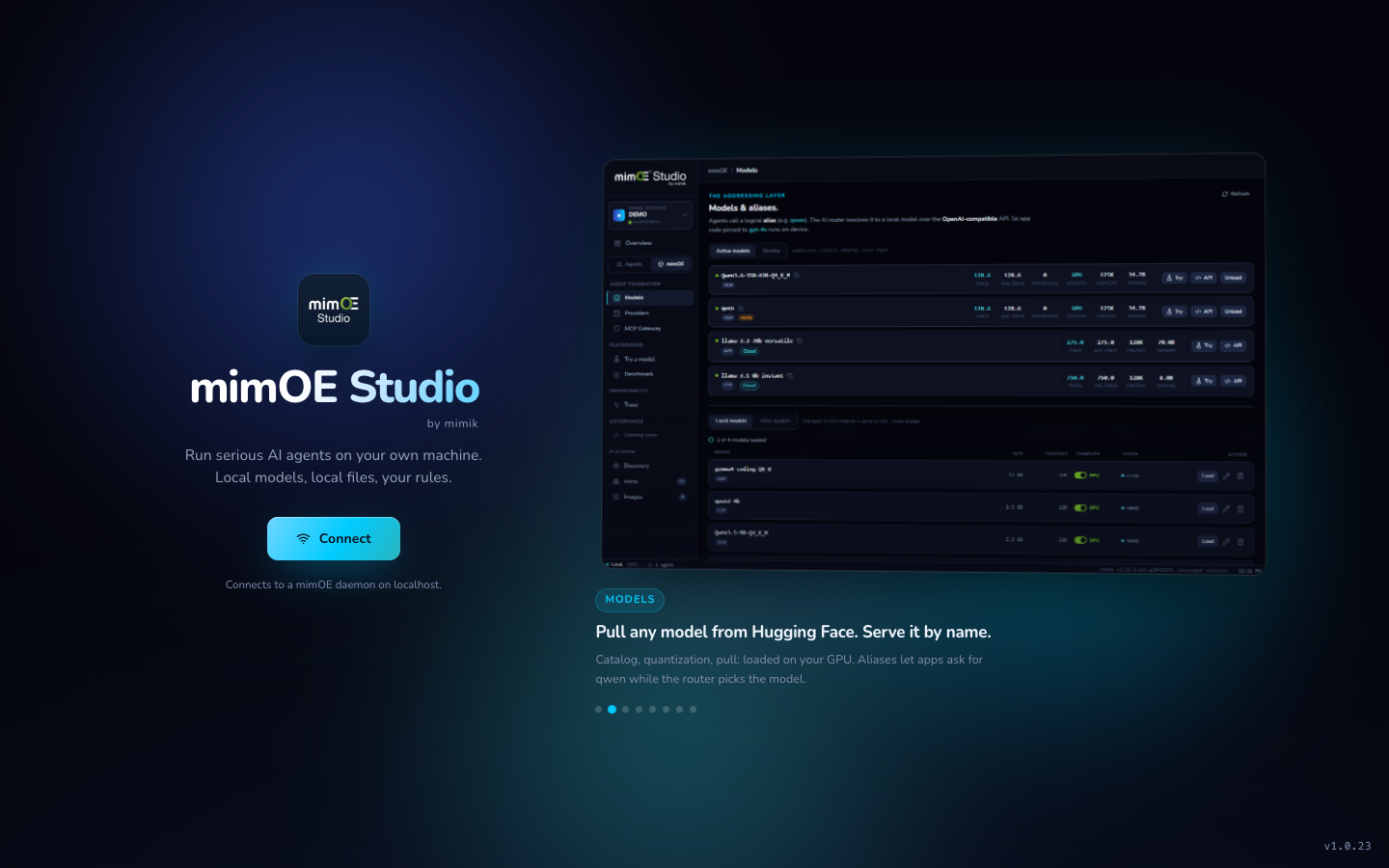
- Install Runtime. On first run, if no runtime is found, click Install Runtime. Studio provisions the engine, model store, router, the MCP shell gateway (with generated keys), a license, and a starter backend. No terminal, no package manager.
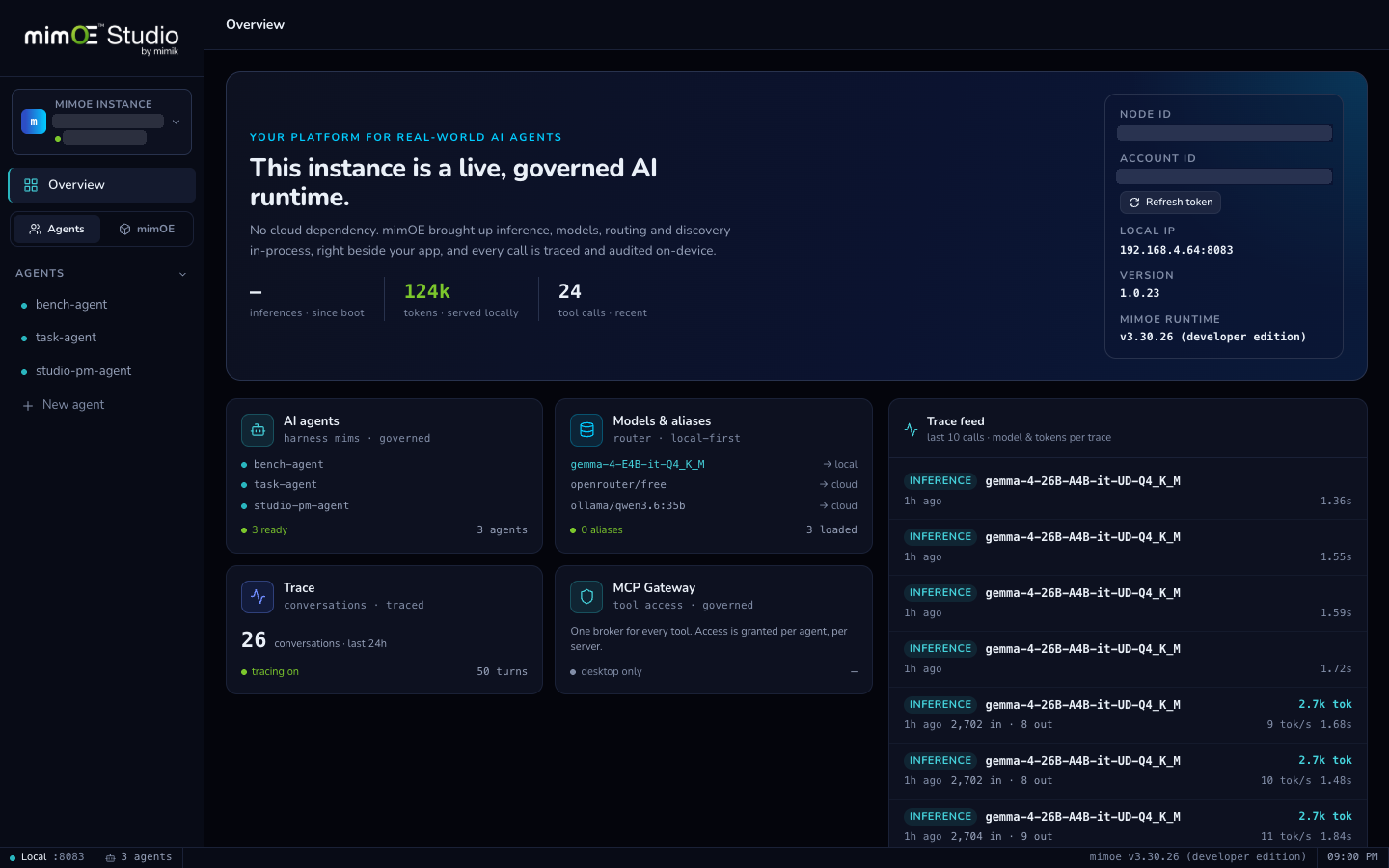
- Connect. Click Connect and Studio connects to the mimOE runtime on your machine. It's always local: your machine, your data. You land on the Overview, with keys already generated and the gateway enabled, so pulling a model or deploying an agent works immediately.
Get a model
ModelsPull from Hugging Face. Serve it by name.
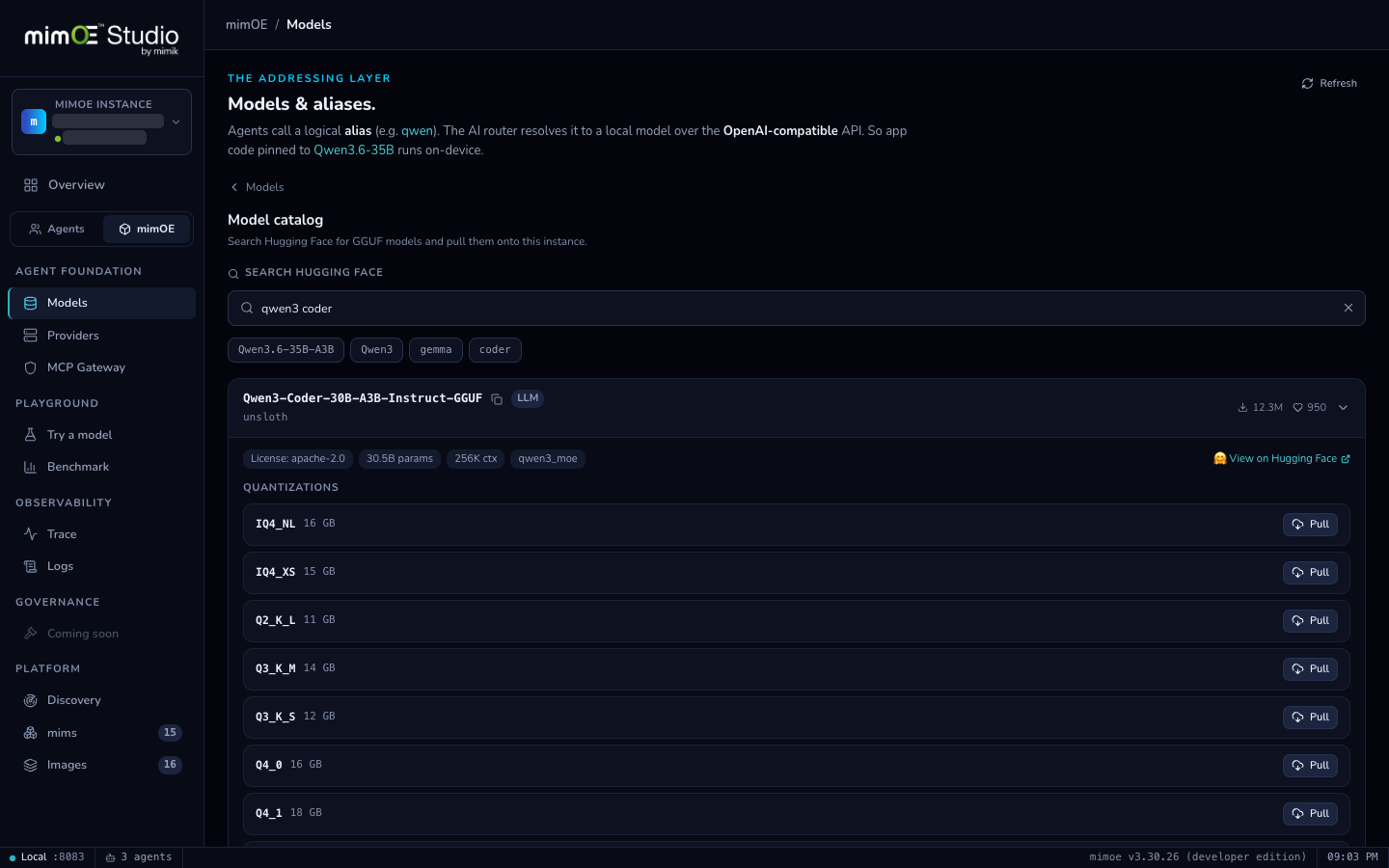
An agent needs a brain. Go to mimOE → Models, then Pull a model to open the catalog.
- Browse or search. Curated picks up front; all of Hugging Face behind the search box. Expand a repo to compare quantizations with size and quality side by side.
- Pick a quantization and pull. A
BF16ofQwen3.5-4B-GGUFis a great all-rounder, and there are recommendations under the search bar. - Load it. One click moves it onto your GPU; it shows up under Active models with live tok/s.
- Name it with an alias like
qwen. Swap the model later and every app follows, with zero reconfiguration. Clients never learn filenames.
Bring your own inference
ProvidersLocal servers and cloud, behind one router. (Optional: skip if you pulled a model above.)
mimOE ships with its own inference server, and it's genuinely good; for most people it's all you'll ever need. But we're not here to dictate what you run. If you already have inference somewhere (Ollama, Lemonade, or a cloud key), bring it. That's what Providers is for: attach what you've already got instead of re-downloading, and it lands behind the same one router as everything else.
- Attach what you already run. Models → Providers → Attach local server, pointed at an
OpenAI-compatible endpoint (
localhost:11434for Ollama; Lemonade, OVMS too). Its models list live, nothing copied. - Cloud when you choose it. Register keyed providers (Groq, OpenRouter, OpenAI, NVIDIA, Z.ai) and expose exactly the models you want. Never a silent default.
- Measured, not claimed. Pin a model and Studio probes it on your hardware, giving real tokens/sec next to the name.
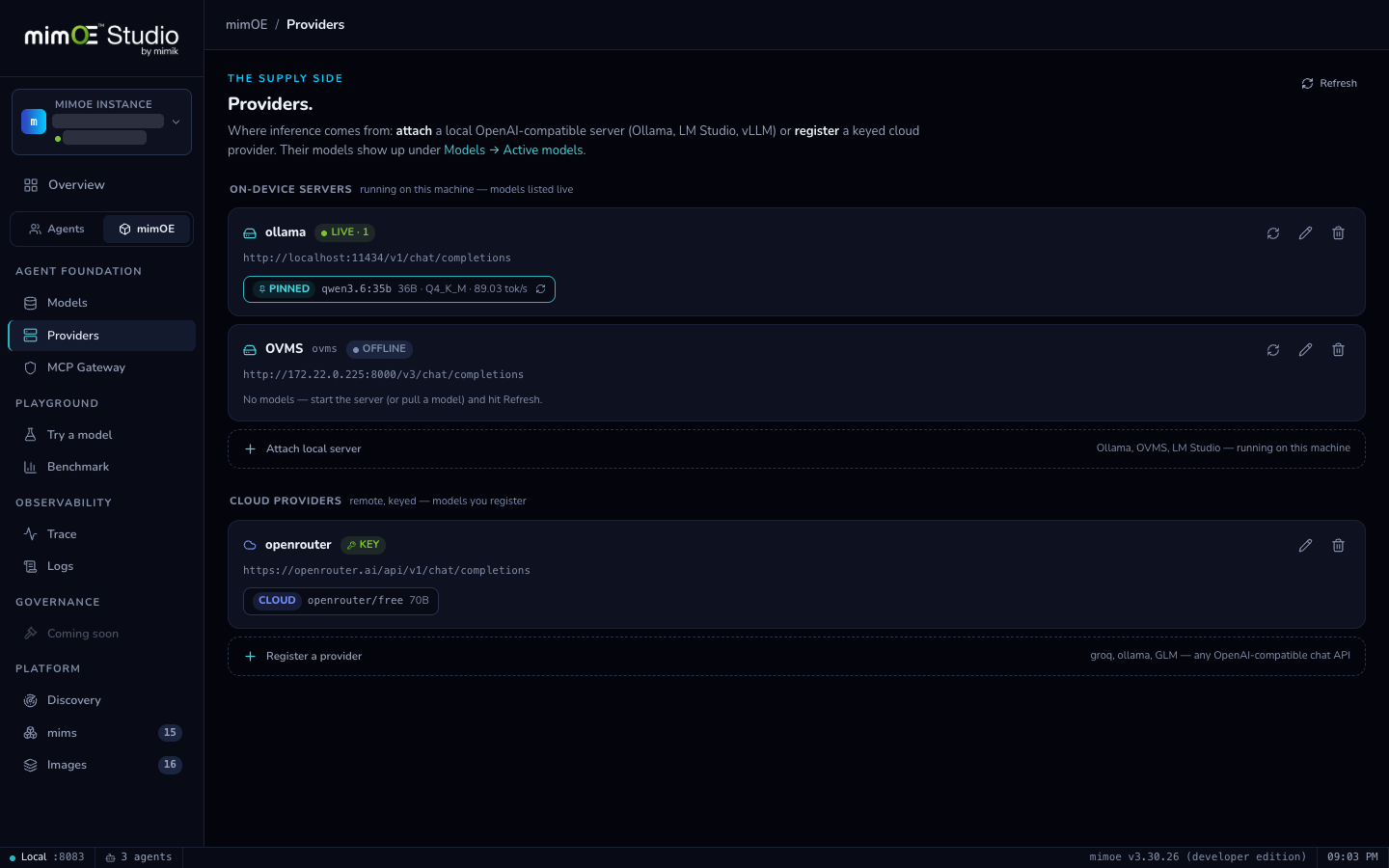
qwen3.6:35b pinned and measured at
89 tok/s on this machine. Every provider's models join Active models behind the one router.Kick the tires
PlaygroundA raw line to any model. No agent in between.
Before you build an agent, decide if the model is good enough, with nothing in the way.
- Open mimOE → Try a model, pick a model, and ask. The answer streams live; on thinking models the reasoning streams separately.
- Read the numbers. Every turn shows tokens/sec measured on your hardware. Comparing two models is just asking both the same question.
- Nothing is saved. This is scratch paper; history and persistence belong to agents.
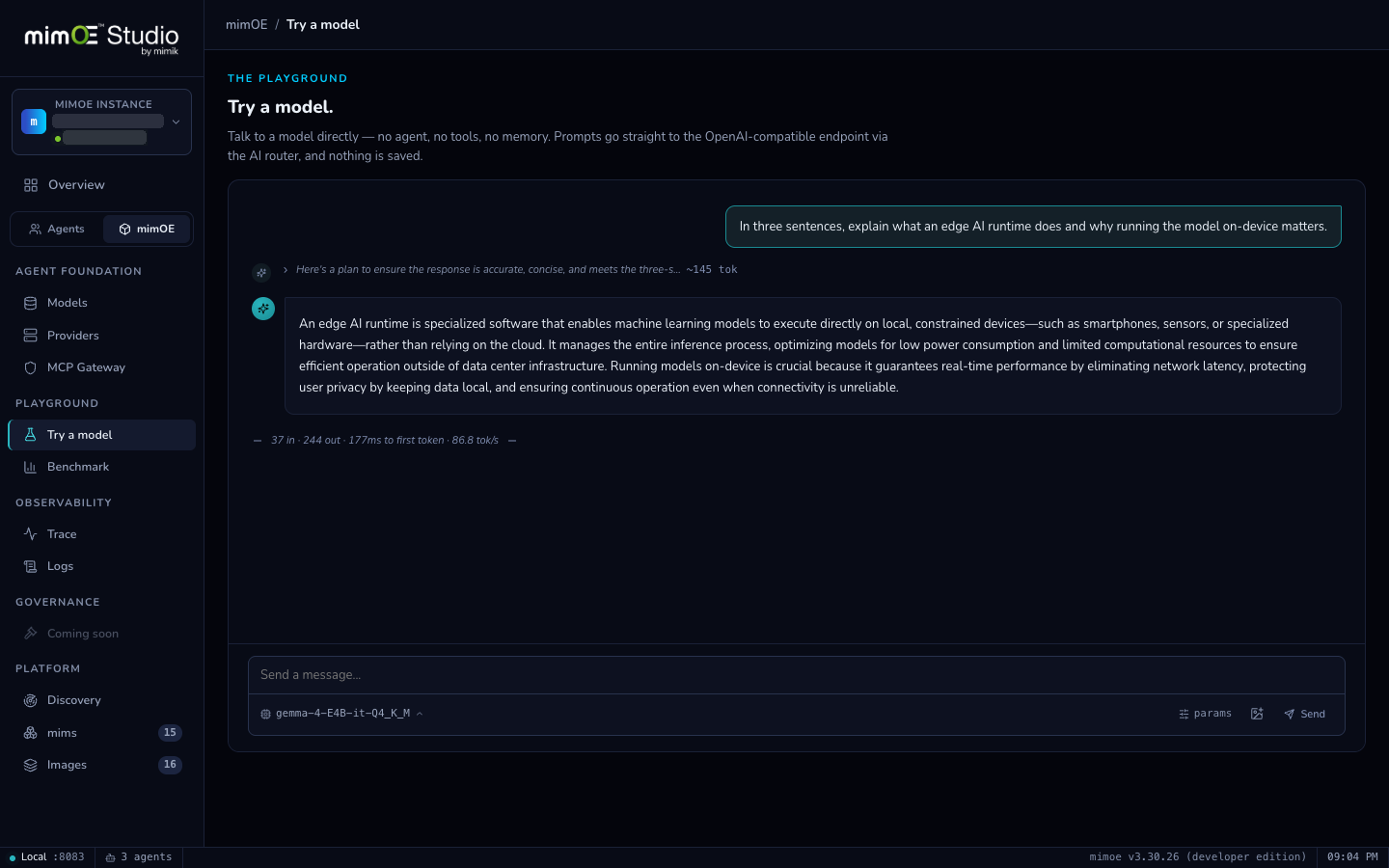
37 in · 244 out · 177ms to first token · 86.8 tok/s) from
gemma-4-E4B-it-Q4_K_M on this machine. Thinking streams as its own collapsible line.Deploy your first agent
AgentsA full harness: tools, skills, subagents. Nothing runs without your OK.
- Deploy in the wizard. Agents → New agent. Name it, pick its model, choose a working directory. Studio deploys the agent as its own microservice with a filesystem sandbox for its file tools and a shell. Two agents never share a workspace.
- Give it a task. It plans and works in a loop, reading files, editing, running the shell, and calling APIs, streaming every step live.
- Approve what executes. Risky calls pause: allow once, allow always, or deny. Grants persist per agent under Permissions.
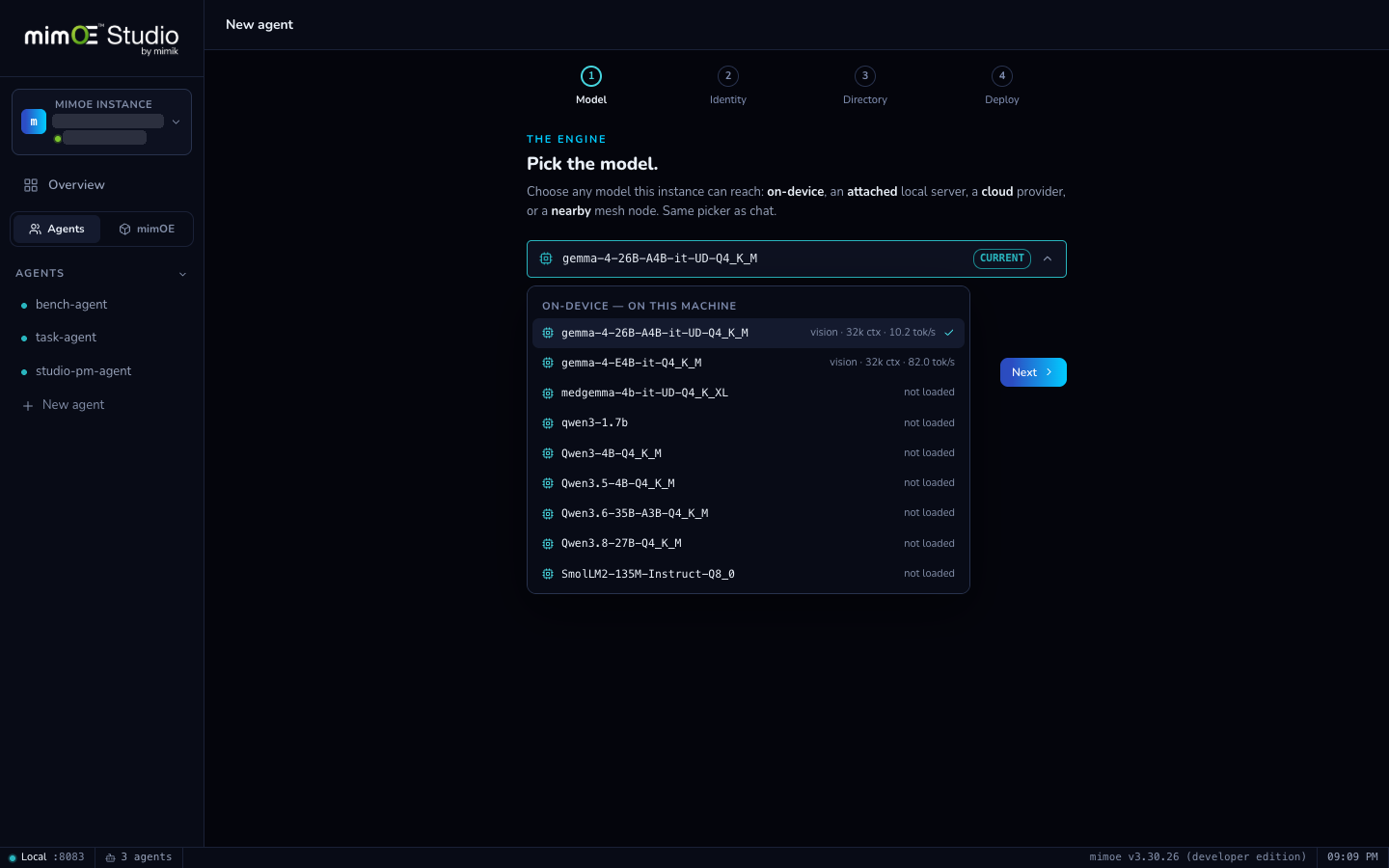
bash shell and wires it to the gateway automatically. Real commands from the first message.Then just talk to it in Chat. Try “Summarize what this project does,” or “This log is huge, so what are the top 10 errors? Use grep/awk, don't read the whole file.”
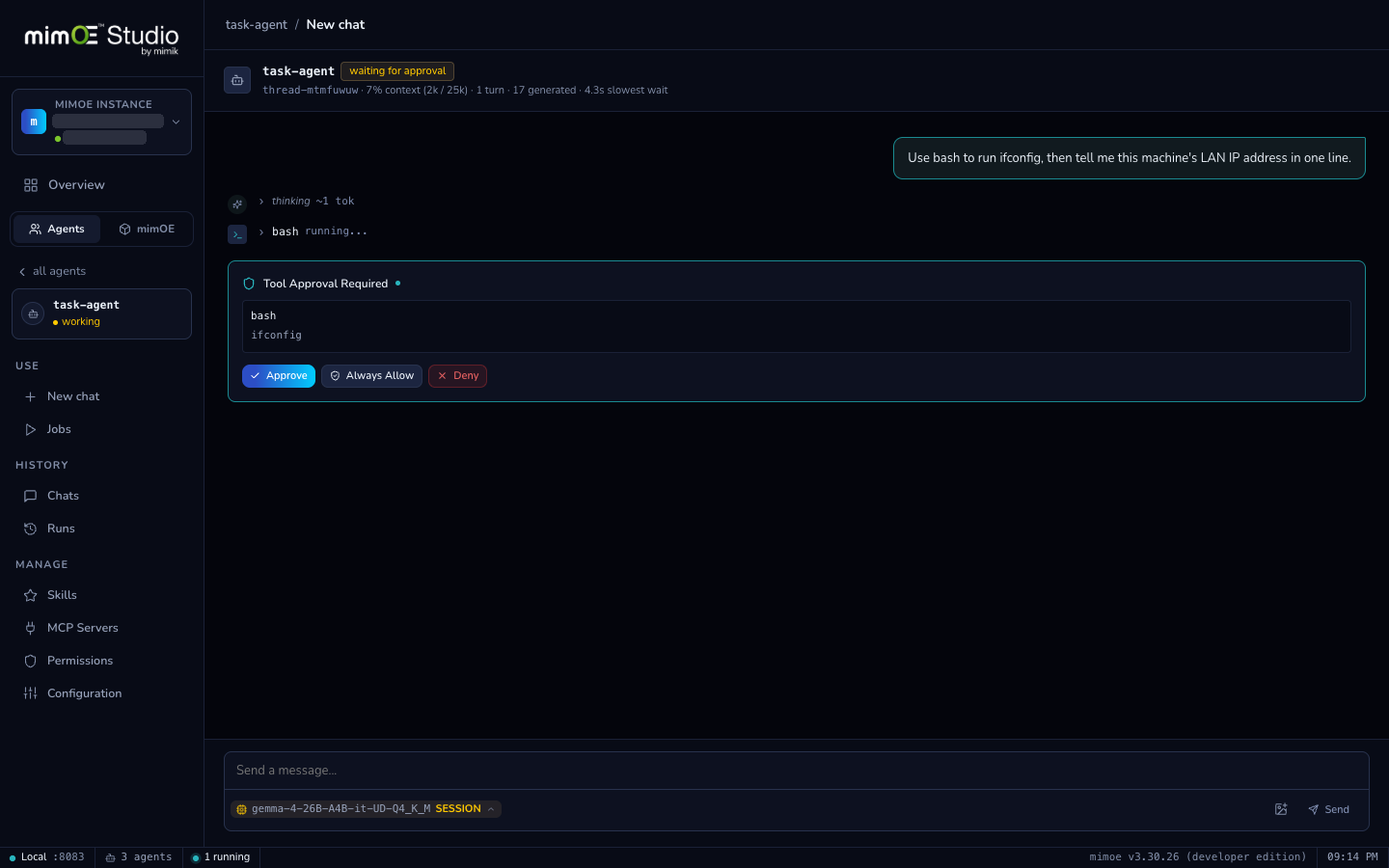
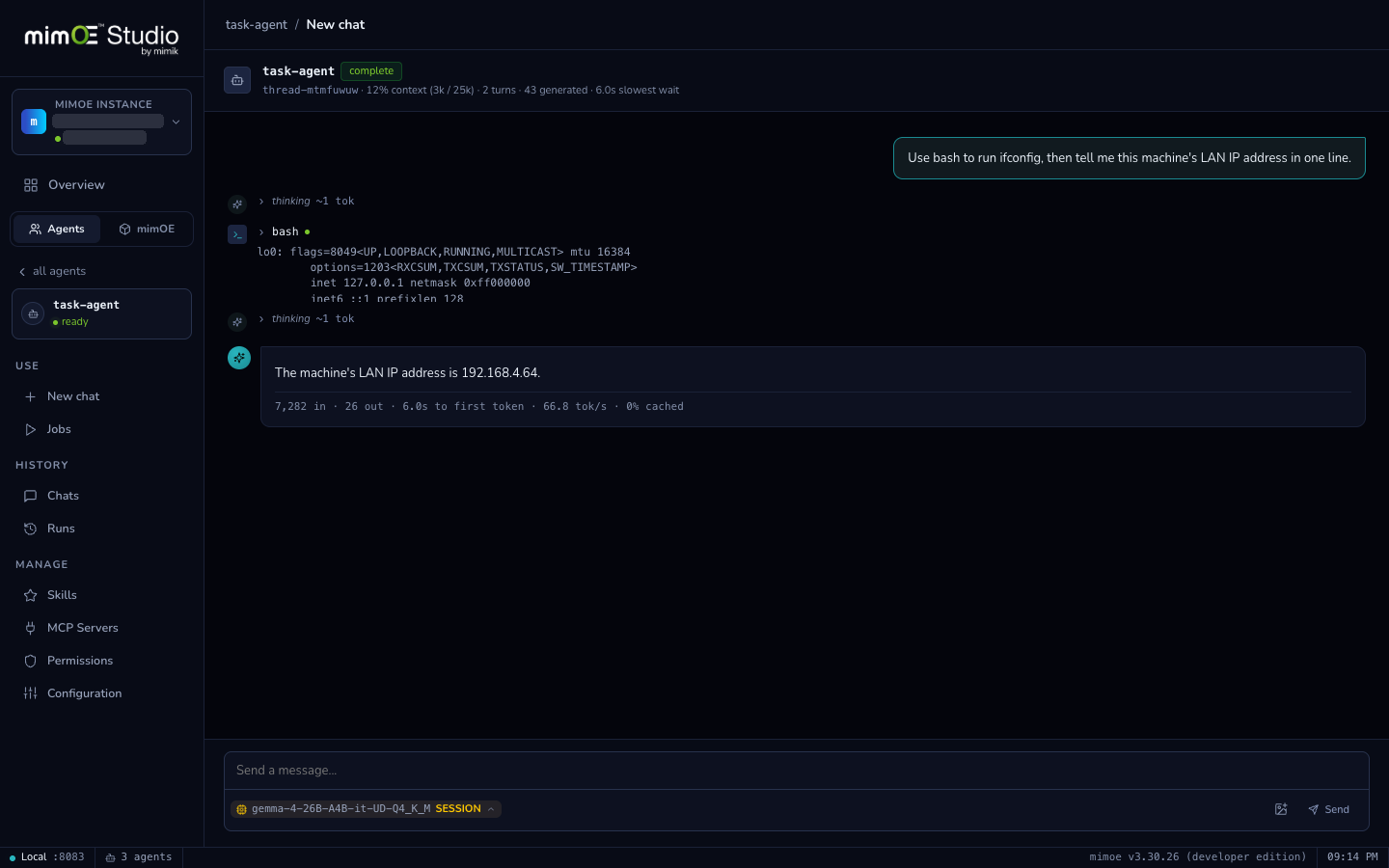
bash tool call
(ifconfig) → the answer. You watch the work happen, step by step.- Subagents. For work too large for one thread, the agent decomposes, fans out, and collects. Long histories compact automatically.
- Jobs. Save a prompt as a one-click job with parameters, and re-run it without retyping.
- Sessions that survive. Every conversation persists on disk; interrupt mid-tool and resume later, even across restarts.
Skills: teach the workflow once (the differentiator)
A skill is a folder with a single SKILL.md: a short header plus a markdown body. No
code, no rebuild. Drop one in and the agent knows the procedure (your report format, a data API, your team's checklist) and applies it when the task matches.
The description tells the agent when the skill applies, so write it like a trigger. The body is the method.
To add one: open the agent's Skills page (it lists everything installed in
.harness/skills/), use + to add, and drop your skill folder in. The
SKILL.md has to sit inside a folder. A bare file on its own is not picked up.
Copy it, don't symlink (symlinks outside the workspace won't resolve).
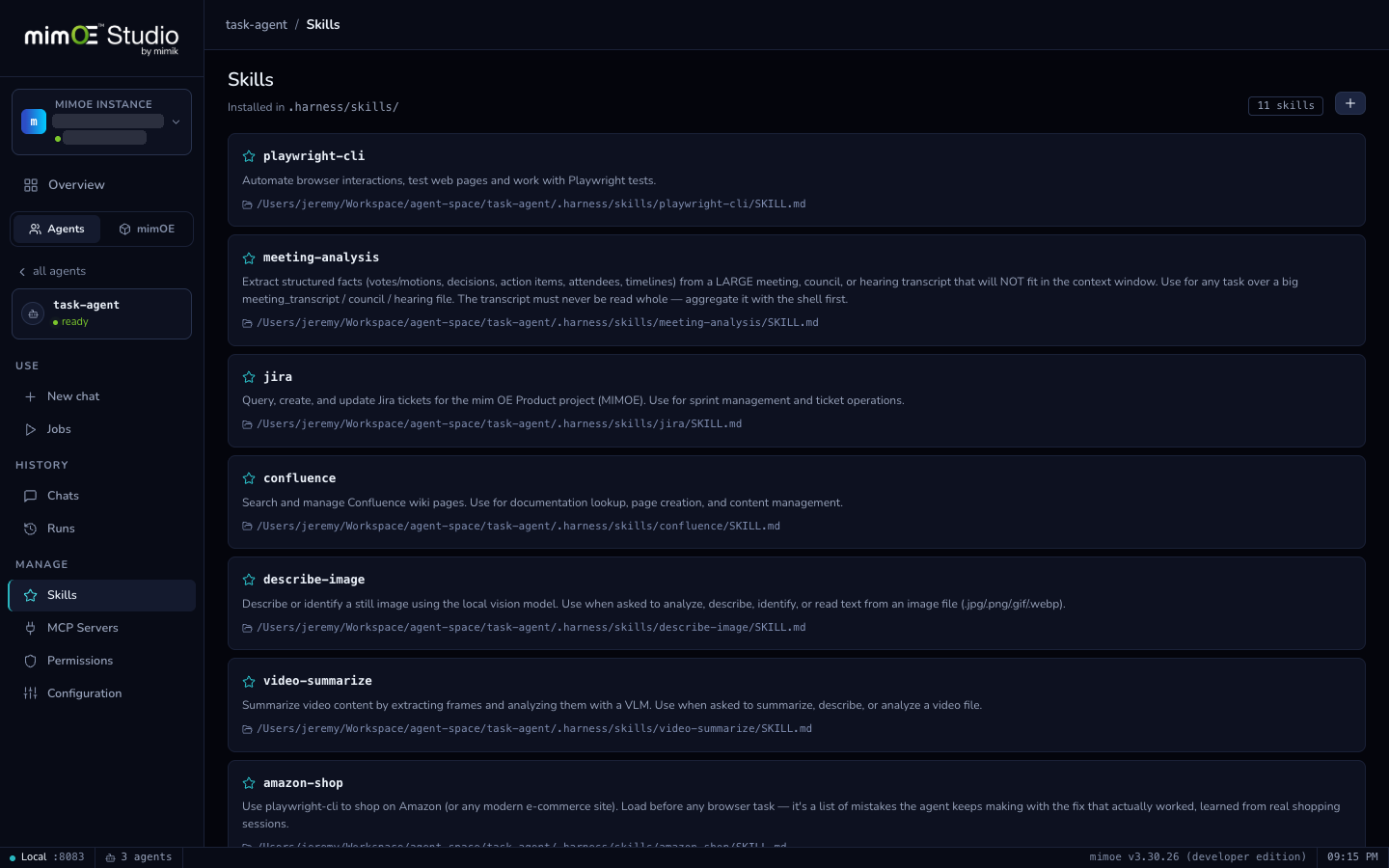
.harness/skills/: jira,
confluence, describe-image, and more, each with its trigger description.SKILL.md format, the same one Claude Code and OpenClaw use, so the
growing library of published skills drops straight into your agent's workspace. And because you choose what
to add, the base stays lean.Give it tools
MCP GatewayMCP built in: one governed gateway for every tool your agents touch.
Agents don't wire their own tool servers. Attach an MCP server once, as a remote endpoint or a local command, and the gateway brokers every call, scoped by per-agent keys.
Example: give the agent web search with Tavily.
- Get a free key at tavily.com.
- mimOE → MCP Gateway → Add server, as a remote endpoint:
https://mcp.tavily.com/mcp/?tavilyApiKey=YOUR_KEY
- Issue a scoped key for your agent and grant it this server. Revoke the key and that agent's tools are gone, no redeploy.
The agent now sees tavily__tavily_search. Approve it and ask: “Who is GitLab's current
CFO? Cite your source.”
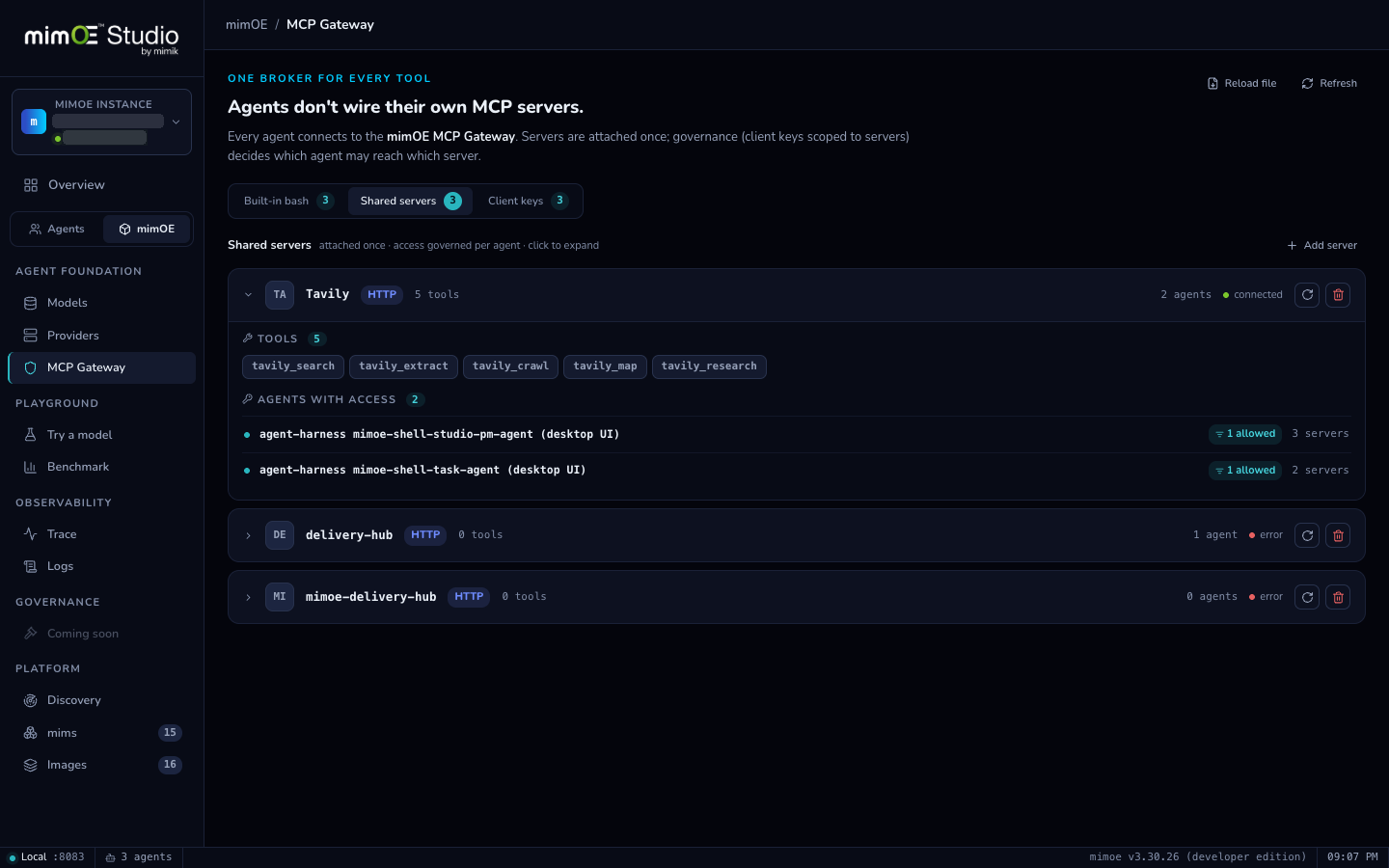
- One gateway, not N wires. Anything with an MCP server (Jira, databases, browsers, your scripts) becomes an agent tool.
- The shell is itself a gateway server, the same broker every other tool goes through.
- One place to govern. Every tool call crosses one choke point (the same one Trace builds on).
Worked example: teach it to read PDFs & spreadsheets
The agent can't read binary documents directly. Give it a parser plus the skill that teaches its use:
npm i -g @llamaindex/liteparse            # the `lit` CLI
npx skills add run-llama/llamaparse-agent-skills --skill liteparse
# then copy the liteparse skill folder into the agent's .harness/skills/
lit must be on the agent shell's PATH (the agent's shell, not just your login
shell); if not found, symlink it into a dir that is (e.g. /usr/local/bin). Now: “Read
report.pdf and turn its schedule into a .ics calendar file.” That's a tool plus a skill, the whole pattern.
Benchmark: find your box's ceiling
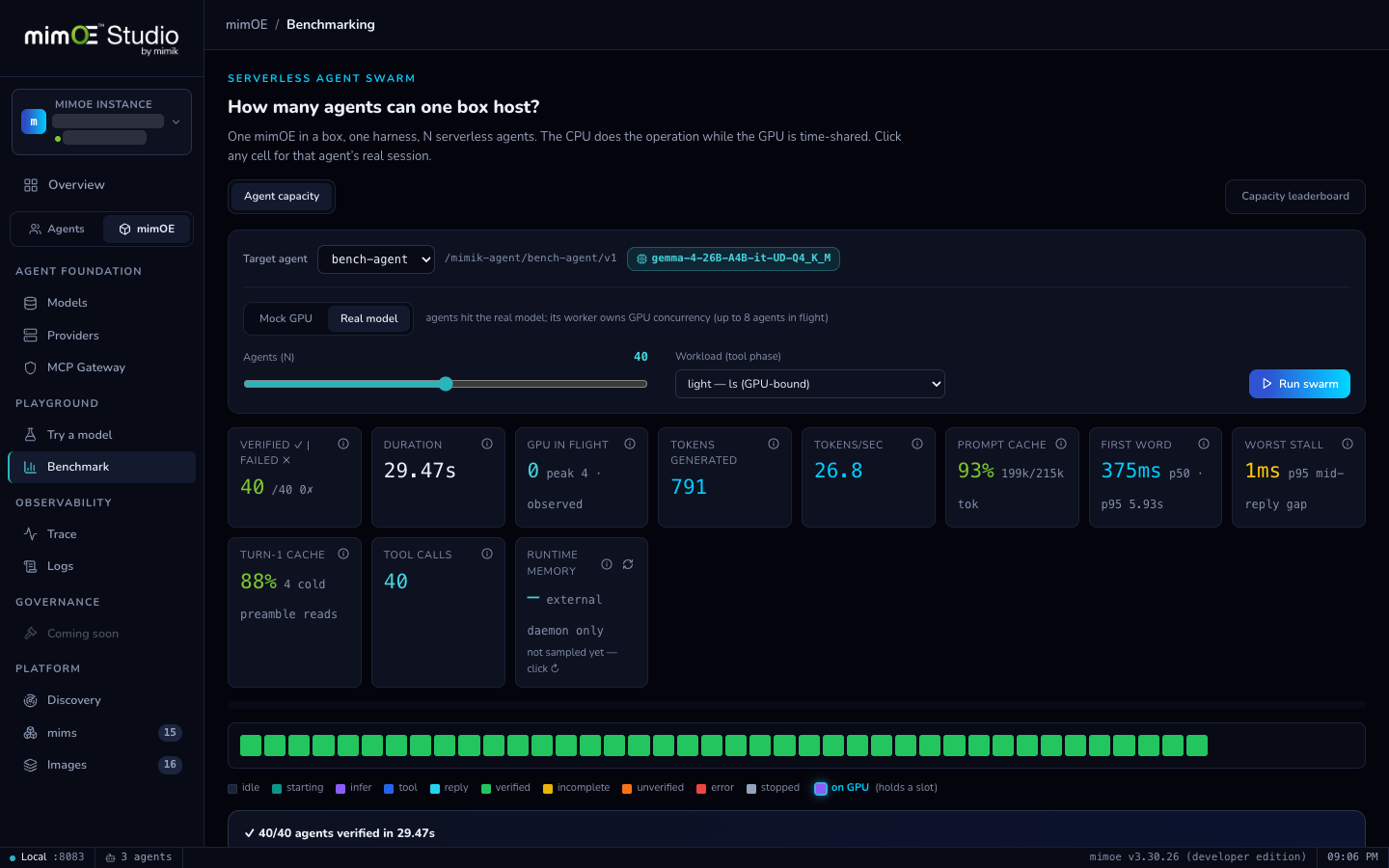
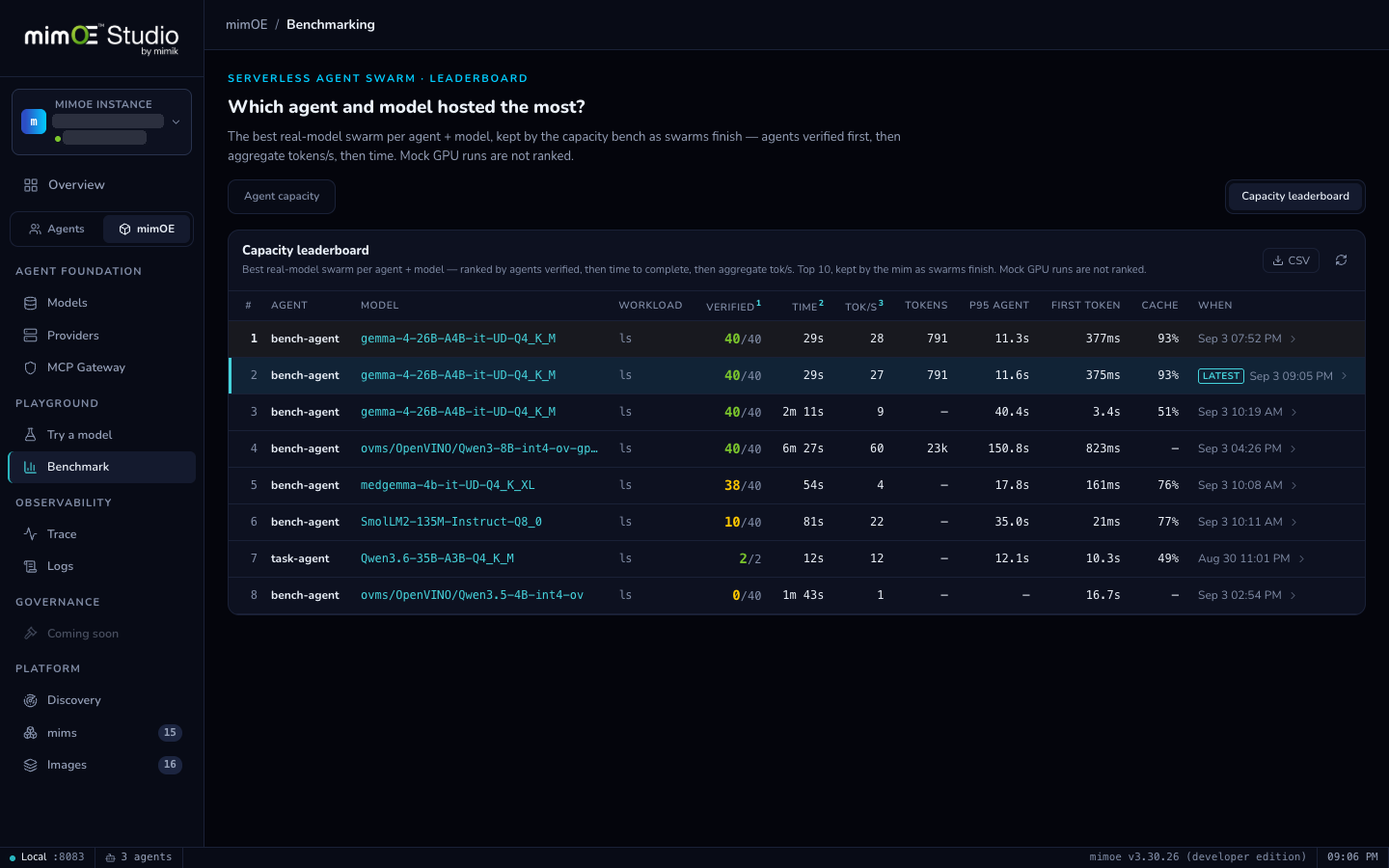
BenchmarkThe Playground exercises one model by hand; its sidebar companion Benchmark does it at scale: a swarm of real agents driven against your instance to measure how many one box can host.
- Pick a target agent. Any deployed agent qualifies; if it isn't bench-enabled yet, Studio flips that on for you right from the picker (the same Benchmark/debug toggle in the agent's Settings).
- Choose the stack to stress. Mock GPU swarms against a synthetic inference engine to measure pure orchestration capacity; Real model drives your actual model, GPU concurrency included.
- Watch it live. Agents verified/failed, GPU-in-flight, tokens-per-second, and memory, streaming as the swarm runs.
- Check the Leaderboard. The tab beside the bench keeps your box's best real-model run per agent, model, and workload (mock swarms are never recorded — a synthetic GPU says nothing about agent + model), and every board exports as CSV with one click.
Advanced: big documents & parallel work
AdvancedBig jobs from a normal chat message; the harness spins up help on its own.
- Workflows: ask for something with independent parts ("research these five companies and compare them") and the agent plans the tasks with their dependencies and runs the independent ones in parallel, each in a fresh context, then combines the results. You watch the legs stream live in chat.
- Subagents for heavy reads: for an input too big for one context (a huge dataset, a long document), the agent delegates the read to a subagent so the parent's context stays tiny.
- Squad mode (API only for now): a per-request flag that tells the agent up front to run a large job as a map-reduce across subagents. The tools are the same ones chat already uses; only the explicit flag has no UI control yet.
- Vision: load a VLM model and an image-attach button appears in the chat composer (it
shows only when the selected model accepts images). Attach a screenshot and ask "what's the error here?" —
all on-device. Programmatic callers can pass images on the
chatAPI'simagesparameter.
Use the whole network
The meshEvery model on your network, in one list.
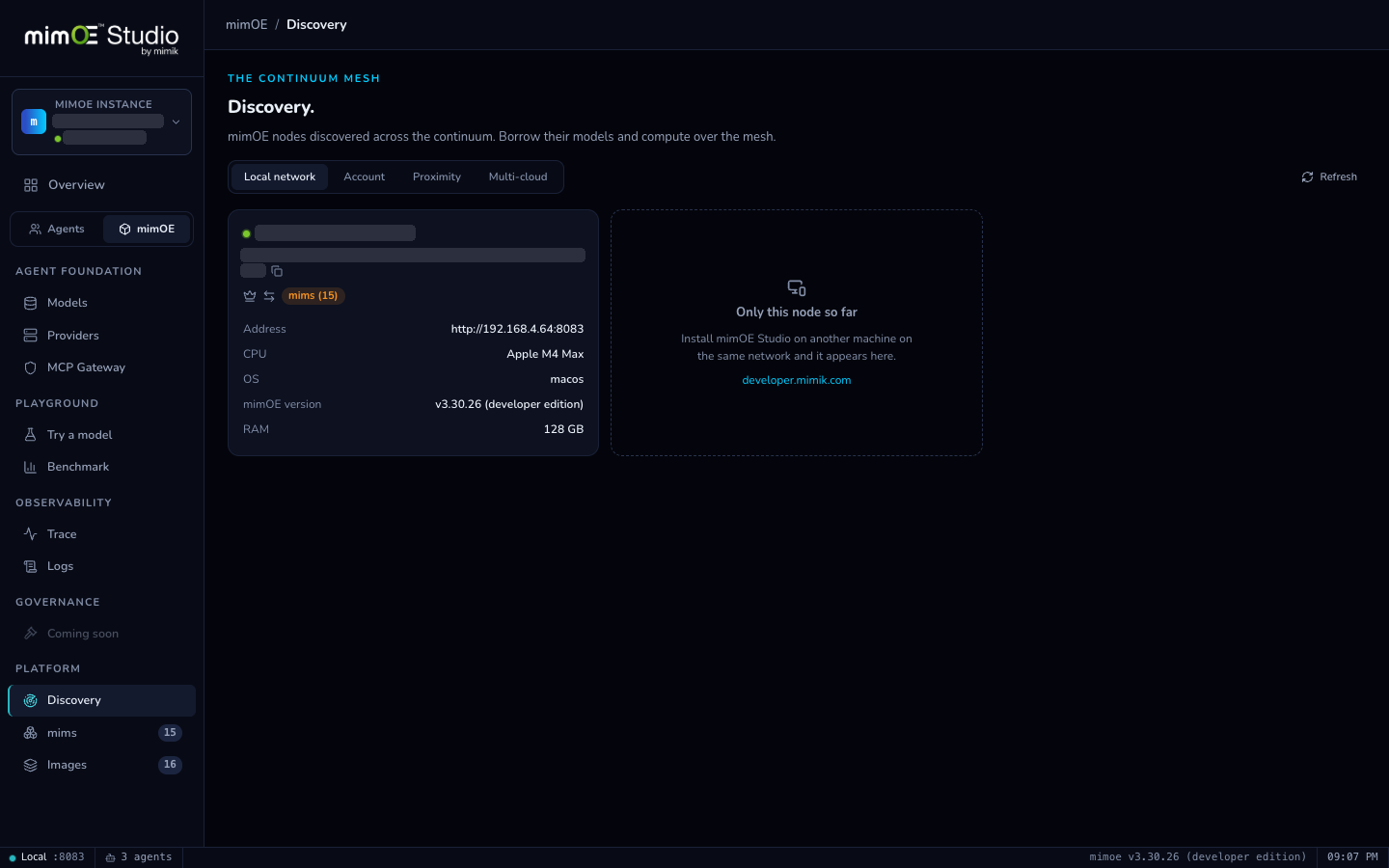
Run mimOE on more than one machine on the same network and they find each other, with no IPs and no YAML.
- Each machine (a workstation with a big GPU, your laptop, a lab box) runs mimOE. That's the whole setup.
- Nodes discover each other automatically over link-local mesh discovery, each with a stable node ID.
- Discovery (and Models → Nearby) lists what every node is serving right now, queried live, so a node that goes offline disappears.
- Use them by name. Hit Try, or address a model as
{node-id}/{model}from an agent or your own app. The workstation's 35B, usable from your laptop.
Drive another machine
RemoteEvery mimOE on your network, one click away.
The instance card in the sidebar (top-left in every screen above) is the whole UX. Studio always starts connected to this machine; you switch from inside the app.
- Click the instance card → Manage Connections.
- Add by node ID (not IP). Paste it and Resolve, and discovery fills in the address and device name and pins that identity to the profile. Add its management key.
- Test. The probe verifies it's the machine you pinned, checks the key, and harvests the per-service keys so models, routing, and the Playground work immediately.
- Connect, safely. Switching commits only on success: a dead target never strands you. If its IP changed overnight, Studio re-resolves the node on the mesh and follows it.
- While remote, the app wears mimik orange so there's never doubt about whose machine you're driving. One click returns you home.
See the receipts
ObservabilityA receipt for every inference, and the policy layer being built on them.
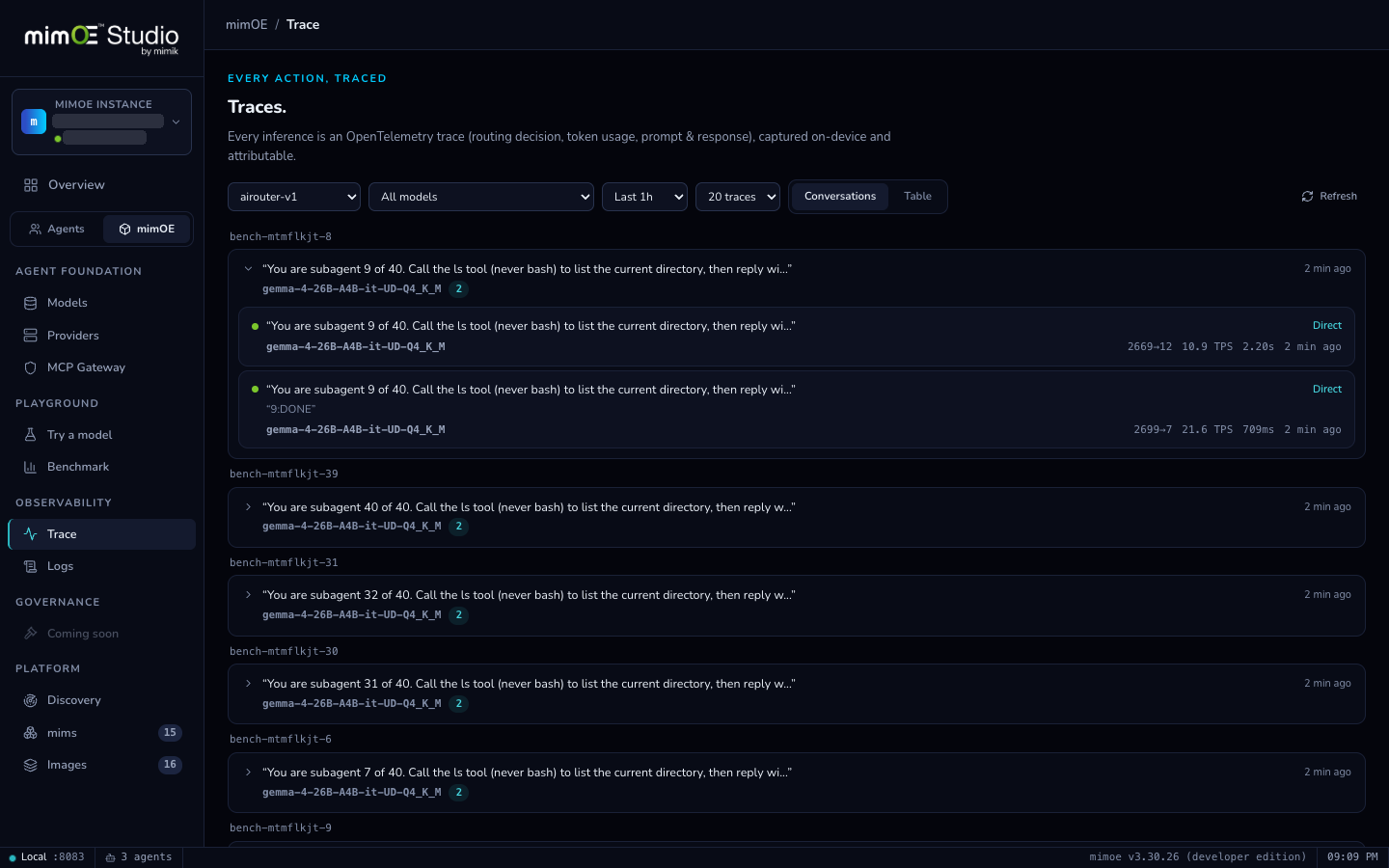
- Each request through the router becomes an OpenTelemetry trace: which app asked, which model answered, routing, timing, token counts, and the content itself.
- Stored on-device. Kept on the machine that served the request. Nothing is shipped anywhere unless you send it to your own collector.
- Read it as conversations. mimOE → Trace groups spans into conversations, so an agent's run reads like a transcript with metrics. Expand any exchange for the full prompt and response.
- Governance is coming, honestly. Trace is the shipped evidence layer — that's why the sidebar item is labeled Trace, not Governance. Policy and audit are being built on exactly these records.
Why this is a big deal
Everything above runs on a local model, on your machine, with your data never leaving it: no cloud API, no per-token bill, no data egress. And it's not a toy: in our internal capability benchmarking — task suites built to rank frontier cloud models — this harness on a small local quant clears coding, log analysis, CSV, PDF/document work, vision, and web research tasks. And you don't have to take our word for your own hardware: the Benchmark page (§7) measures what your box can host, keeps the best runs on a leaderboard, and exports them to CSV. Why a small model keeps up:
The wow list, in one breath:
- 100% on-device & private. Files and prompts never leave the box.
- A shell for free. Real commands, on deploy.
- Skills = teach any capability with a markdown file. No code; open
SKILL.mdformat, so the whole published ecosystem drops right in. - One MCP Gateway. Plug in any MCP tool (search, DBs, internal APIs), key-scoped.
- Serve by alias. Apps ask for
qwen; swap the model underneath and everyone follows, zero reconfig. - The mesh. A beefy model on one machine is usable by name from every other machine on your network.
- Reads PDFs, spreadsheets, and images; runs subagents & parallel workflows. Big jobs, tiny context footprint — all from chat. (Images attach right in the composer on a vision model; only the explicit squad-mode flag is API-only; see §8.)
- A receipt for every inference. On-device OpenTelemetry traces you can read as conversations.
Troubleshooting
- A tool never runs / the agent stalls. It's waiting on approval. Approve it in chat or pre-allow under the agent's Permissions.
lit/ a CLI “not found” though it works in your terminal. The shell has its own PATH, so put the binary somewhere already on it (e.g./usr/local/bin).- A skill isn't picked up. Confirm it's a real folder at
<agent-cwd>/.harness/skills/<name>/SKILL.md(copied, not symlinked) withname/descriptionpresent. - “prompt too long” / the model quits early. Its context is smaller than the work needs, so load more context or a bigger model, and lean on bash-aggregation / squad mode for big inputs.
- Web search returns nothing. Check the Tavily server + key are saved in the MCP Gateway and
tavily__tavily_searchis approved for the agent. - A nearby / remote node doesn't appear. Both machines must run mimOE on the same network; the list is queried live, so give discovery a moment.