
From download to a running AI stack in one click.
Accept the agreement to enable the download
Studio ships the entire runtime as a bundled payload. Click Install Runtime and watch live progress: engine, addons, license, even a starter model backend. No terminal, no package manager, no dependency hunt.
External runs mimOE as a shared daemon other apps can reach on localhost:8083. Built-in embeds mimOE inside the Studio process: no open socket, a self-contained working directory, gone when the app exits.
The installer sets up the model store, the model router, and the shell gateway with generated keys. Everything agents will need later is already in place the first time you connect.
Air-gapped machines are first-class. The bundle carries everything; the only step that ever wants a network is pulling a new model from Hugging Face.
One installer on macOS or Windows, carrying the entire mimOE runtime inside it as a pre-staged payload. On phones and tablets, install from the App Store or Google Play.
Studio unpacks and provisions everything with live progress: the engine, the model store, the router, the MCP shell gateway, license, and a GGUF backend.
External starts a daemon other apps on this machine can share; Built-in boots mimOE inside Studio's own process with no open socket.
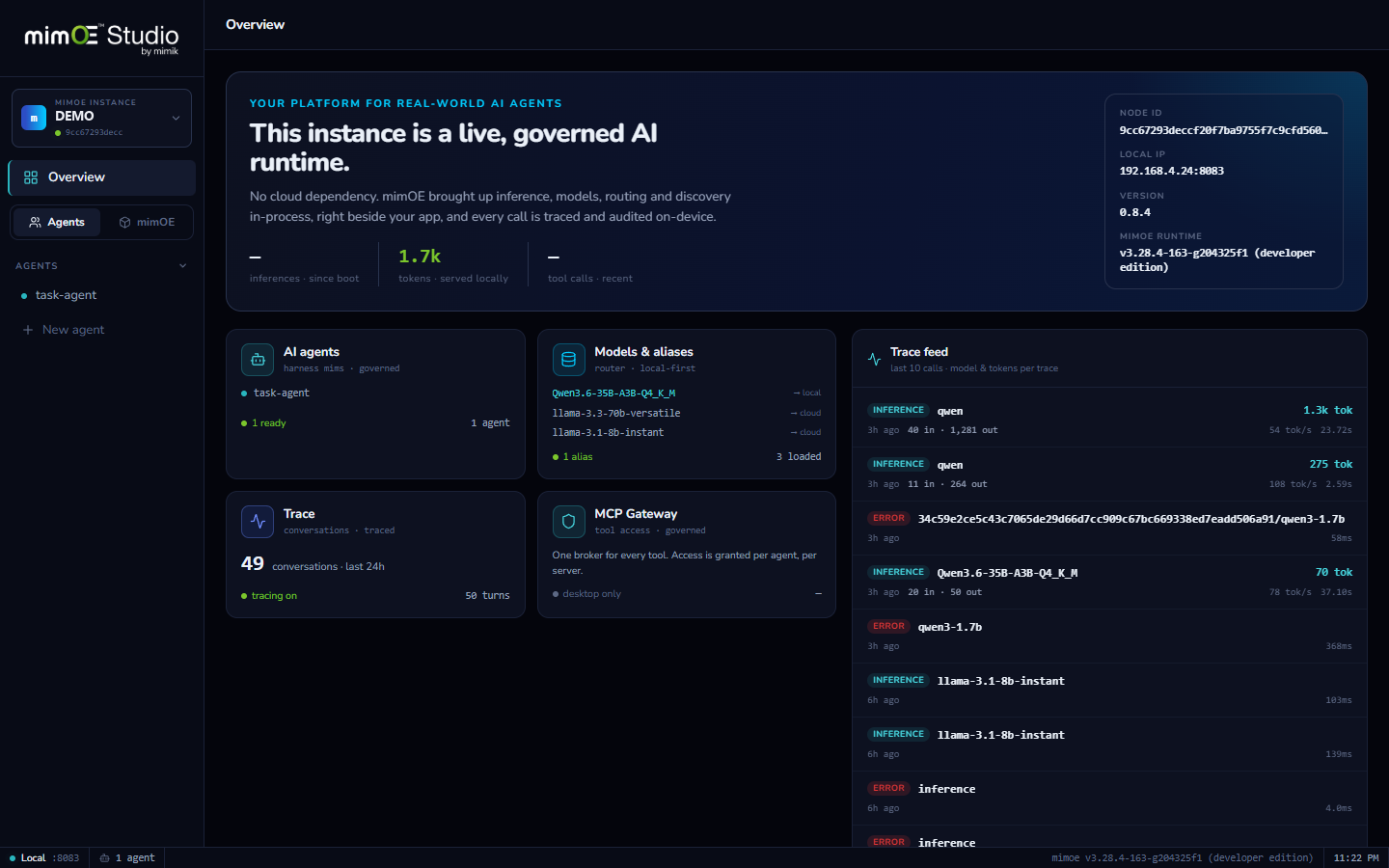
Hit Connect and land on the Overview. Keys are already generated, the MCP gateway is already enabled, so pulling a model or deploying an agent works immediately.